


It’s 9:58 am and your 10 o’clock batch is filing in. A teacher calls out 60 names while the clock keeps running. Meanwhile, someone answers “present” for a friend who is still at home. Later, you find out the child skipped, and the parent never got an alert.
Attendpro stops this by letting your biometric machine take attendance for you. This guide explains what the tool does and how it connects to Classpro. You’ll also see its 6 main features, the setup steps, and the mistakes to avoid.

What is Attendpro?
Quick answer: Attendpro is a small desktop program from Classpro for coaching institutes. It reads fingerprint punches from your biometric machine. Then it sends that attendance to your Classpro account. Classpro marks each student present or absent and alerts parents.
You may find other apps called AttendPro or “attend pro” on Google. Most of them track office staff through GPS or face scans. This Attendpro works only with Classpro, and it serves coaching classes and tuition centres.
How the tool works with Classpro
Classpro doesn’t connect to biometric devices on its own. Instead, this sync tool sits in the middle and passes the data along. Here’s the flow from a student’s finger to a parent’s phone:
- The student places a finger on the machine at the classroom door.
- The machine records the punch with the exact time.
- The tool fetches that punch and matches it to the student’s schedule.
- Classpro updates the attendance record and sends parents an instant attendance alert.
Parents can also check attendance any time in the Classpro student and parent app. So your front desk stops fielding “Did my child reach class?” calls. Regular updates also build parent trust, as our post on how parent updates grow coaching institutes explains.
Benefits of Attendpro for coaching classes
1. No proxy attendance
A friend can’t lend you their fingerprint. So buddy punching, where one student marks another present, stops. The machine only accepts the finger of the enrolled student. That keeps your attendance honest in every batch.
2. Real-time attendance
Every punch carries the student’s identity and the exact time. The software records both the time-in and the time-out. As a result, you can see who is in class right now. You also get clean data for your attendance reports at the end of the month.
3. No manual marking
Nobody on your team needs to mark attendance by hand. The Punch Record screen shows each punch as soon as it arrives. With 50 students in a batch, roll call alone can eat the first five minutes. Now teachers start the lesson on time instead.
The 6 features: A walk through each panel
The software has one screen for each job. You’ll set most of it up once and then leave it running. Here’s what each panel does.
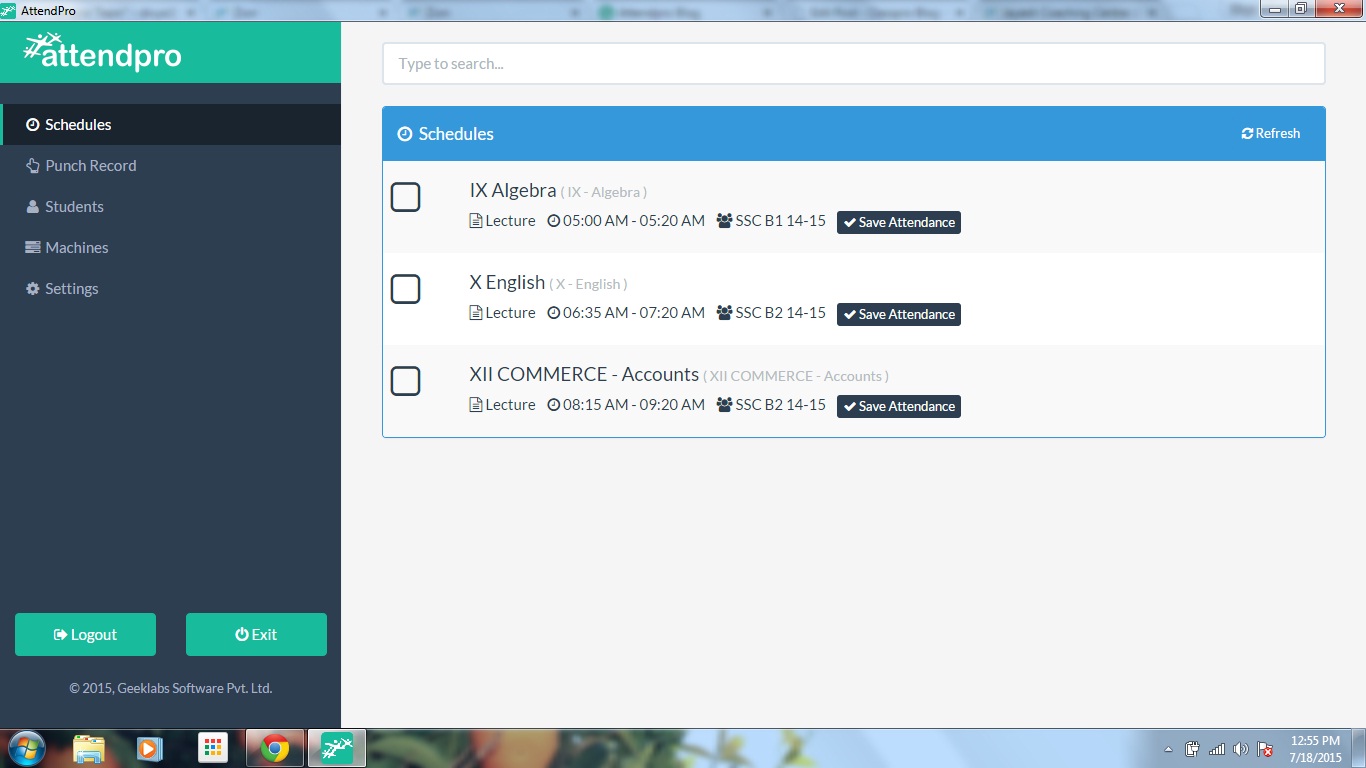
1. Schedules
The tool fetches all your lecture schedules from Classpro on its own. You don’t need to type any timetable twice. So the timetable you build in Classpro is the one the machine follows.
2. Punch record
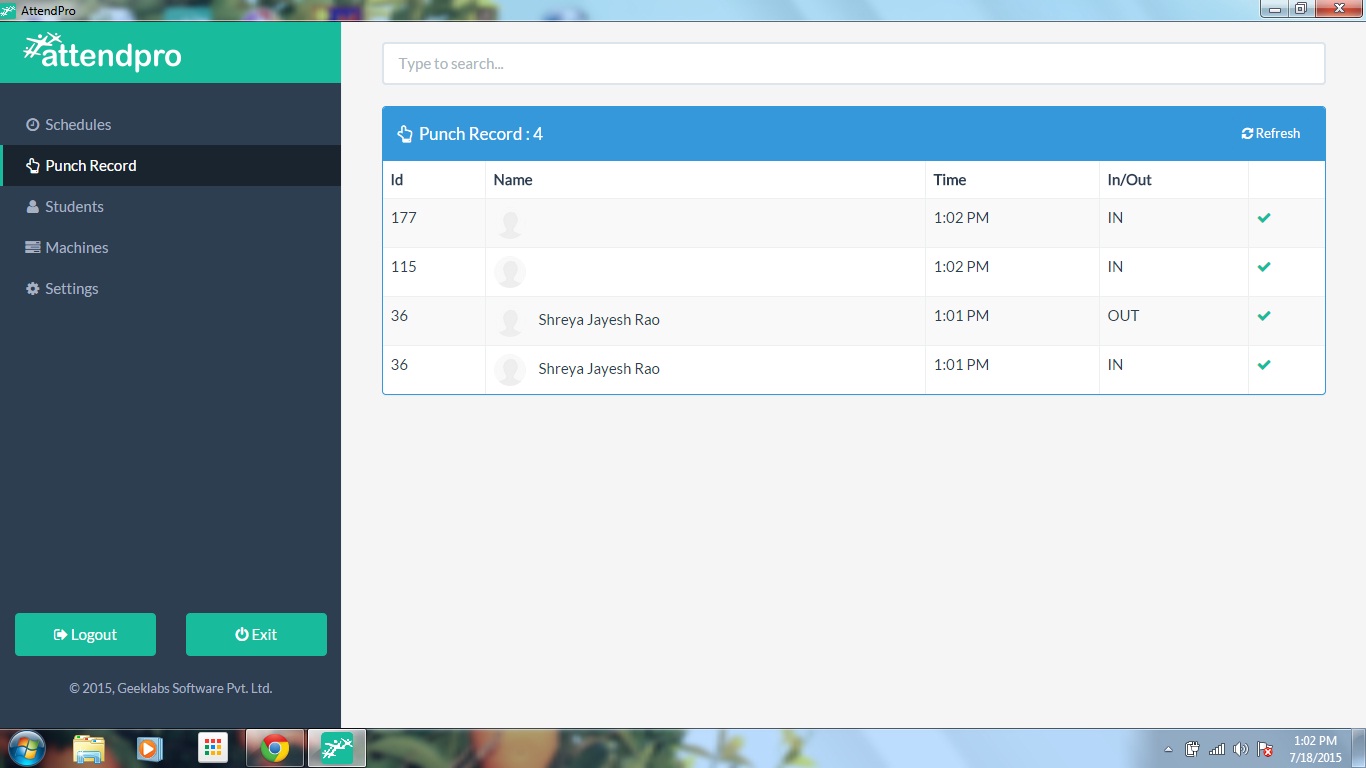
This panel lists every student who punched in or out on the machine. It’s the fastest way to check who has arrived for a lecture. If a student says they punched but shows absent, look here first. No punch on the list? Ask the student to punch again.
3. Students
Here you’ll see each student’s ID and name. The software uses these details to match a fingerprint to the right person. So the ID on the machine must match the student’s record in Classpro.
4. Machines
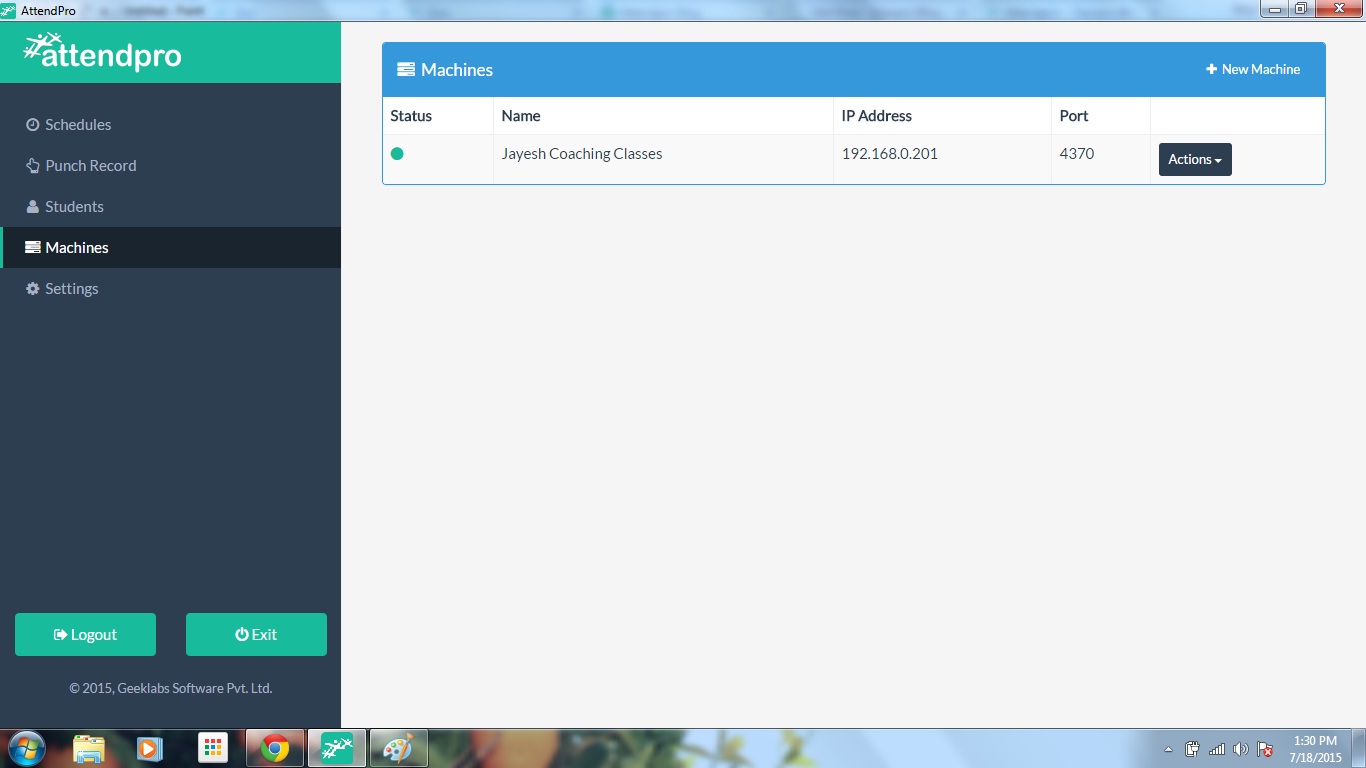
This is where you connect the biometric machine to the software. You can add, edit, or test a machine from this one panel:
- Click New Machine to add your biometric machine.
- Click Actions, then Edit, to change a machine’s details.
- Use Test connection to check that the machine and the software can talk.
Run Test connection again after a power cut or a new router. Machines can lose their network link when the office setup changes. The test takes seconds and saves a morning of missing punches.
5. Save schedule after
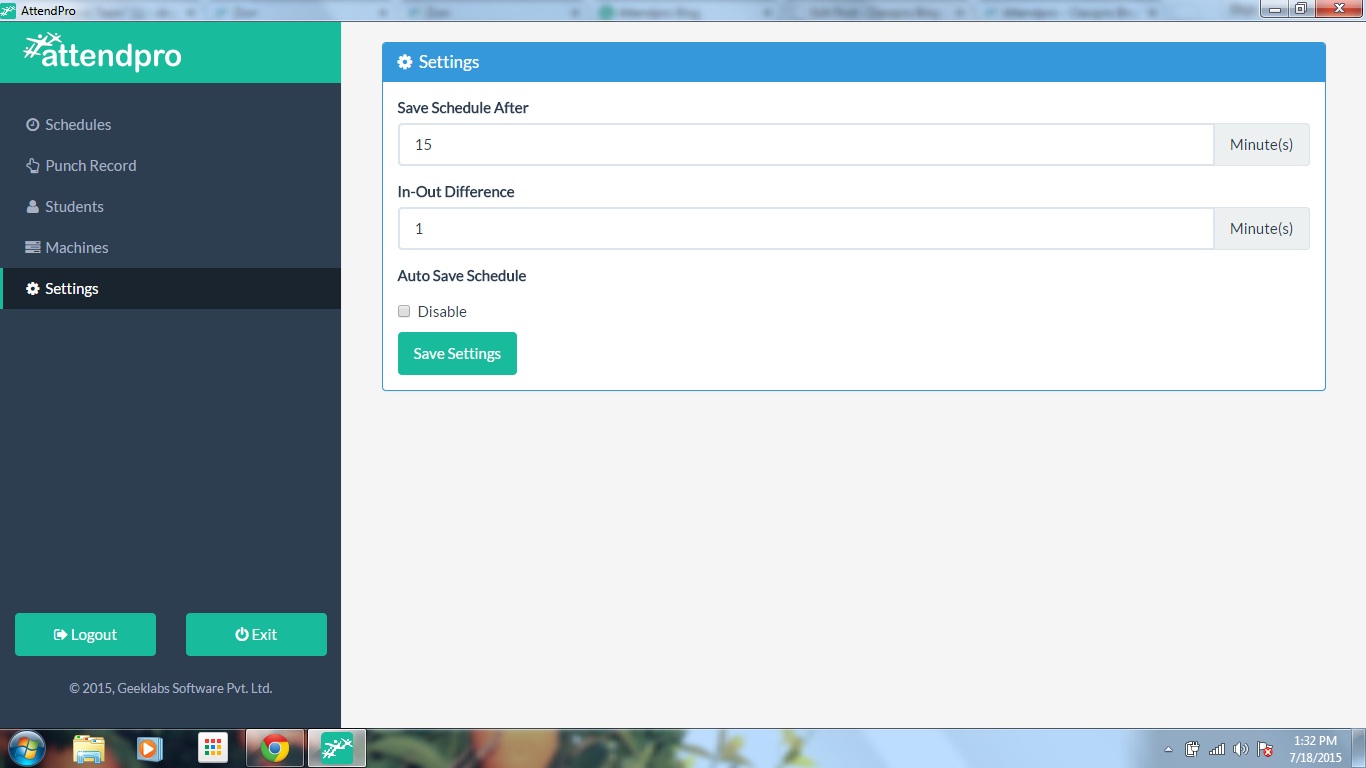
This setting decides when the software saves attendance for a lecture. Students who punch in within this window count as present. Pick a window that fits your late-entry policy.
For example, you set it to 15 minutes and a lecture starts at 10:00 am. Students who punch in by 10:15 am count as present. Everyone else counts as absent. The software then saves the attendance at 10:15 am.
6. IN-OUT difference
This setting fixes a gap in minutes between a student’s IN punch and OUT punch. Extra punches inside that gap don’t change anything. A punch after the gap counts as the student’s OUT time.
For example, you set the gap to 30 minutes. Student A punches in at 10:00 am. If A punches again before 10:30 am, the software ignores it and A stays present. A punch after 10:30 am records A’s OUT time.
Setup: 5 steps to get started
Setup takes one sitting if your machine already sits on the office network. Once you finish, you have an automatic attendance system for every batch. Follow these steps in order:
- Check that you have a paid Classpro plan and a supported machine.
- Install the software on a PC in your institute.
- Add the machine under Machines and run Test connection.
- Open Schedules and confirm your lectures appear.
- Set Save schedule after and IN-OUT difference to match your rules.
Classpro’s YouTube channel has a short video on the install. Watch the install and machine connection video before you start. Pause it at each screen and repeat the step on your own PC.
Common mistakes to avoid
Watch for these three setup slips:
- A tight save window marks punctual students absent. Traffic and lift queues add a few minutes, so give students a fair buffer.
- Skipping Test connection hides problems until class starts. Run it after any change to the machine or your network.
- An old timetable in Classpro leads to wrong attendance. The tool follows the schedules it fetches, so fix changes in Classpro first.
Is your team nervous about new software? That worry is common when an institute moves off paper. Our post on why institutes resist coaching ERP covers how to get staff on board.
Who can use it?
The tool suits coaching classes and tuition centres that already run on Classpro. You need a paid Classpro plan to use it. It currently supports the eSSL X990 fingerprint machine.
So if you own that eSSL device, this becomes your eSSL attendance software for Classpro. Our feature page covers biometric attendance for coaching classes in full. Attendance also feeds each child’s student performance report. New to this kind of tool? Start with what coaching institute management software does.
Still choosing a platform? Compare your options in our guide to the best coaching institute management software. It lists the features that matter once you pass a few hundred students. Attendance usually sits near the top of that list.
Next step: Switch to automatic attendance
Attendpro turns your biometric machine into a quiet attendance clerk. Students punch in, Classpro updates records, and parents get alerts. Your teachers start every lecture on time. Start your free Classpro trial or compare Classpro plans and pricing. For a demo, call +91-76666 62330.
FAQs
What is Attendpro used for?
Coaching classes use it to take student attendance from a biometric machine. It fetches fingerprint punches and syncs them to Classpro. Parents then get attendance alerts on their phones.
Is it the same as other “attend pro” apps?
No. Several unrelated apps share the name, mostly for office staff. Classpro’s version works only with Classpro and biometric machines in coaching classes.
Which biometric machines does it support?
It supports the eSSL X990 fingerprint machine. Ask the Classpro team before you buy a new device. That way you avoid a machine that can’t connect.
What happens if the internet goes down?
Classpro’s biometric attendance page says most machines store punches offline. They sync to Classpro once the connection returns. So a short outage won’t wipe out a morning’s attendance.
Is it free for Classpro users?
You need a paid Classpro plan to use the tool. Check the latest Classpro plans to see what each plan includes. On the free trial? Ask the team how to test attendance before you upgrade.
Does it store fingerprint images?
Your machine stores encrypted fingerprint templates, as Classpro’s feature page explains. A template is a coded pattern of the ridges, and it isn’t a photo. That keeps student data safer than a picture on file.



5 Comments
Nice blog Divya. Automatic attendance system will prove helpful in many areas. Thanks for sharing this blog. Biometric Attendance System
Thank you sir 🙂
Really great inputs, as present scenario we must understand how importance of biometrics in daily life.
Biometric Attendance System
Thanks for sharing informative post with us.
RFID Based Attendance System
With current technology, most of the company are using automatic biometric attendance system. It is helpful in many ways like track attendance of employee, calculate salary, total hours worked, full time – part time employee details, etc. There are many providers available in the market, found top 10 biometric attendance system providers with detailed information about the biometric system at https://www.topteninsider.com/biometric-attendance-system